
Passport & Visa Photo Requirements: Size, Dimensions, and File Limits
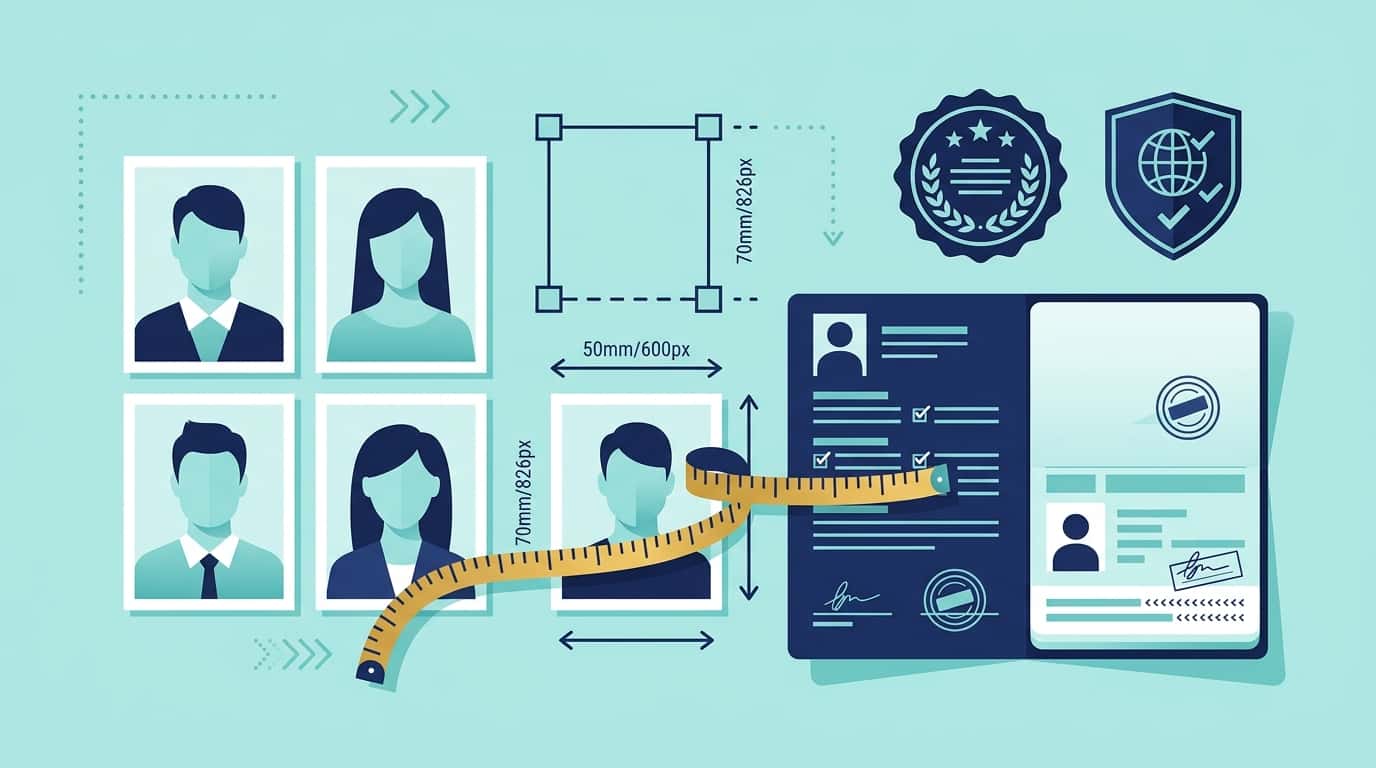
Each passport and visa portal sets its own limits on file size, pixel dimensions, and format. Most will turn down a photo simply because it’s a few kilobytes over the limit, throwing a generic upload error with no real explanation. Here are the current requirements for every portal we support, plus the most common reasons photos get rejected there.
The numbers below come straight from each portal’s tool page on our site, where you’ll find the source link and last-verified date. Before you submit anything time-sensitive, take a look at those pages directly—requirements can change without notice.
Requirements at a glance
| Portal | Format | File Size | Dimensions |
|---|---|---|---|
| US Visa (DS-160) | JPEG | Under 240 KB | 600×600 – 1200×1200px (square) |
| US Passport (Online Renewal) | JPEG | 54 KB – 10 MB | 600×600 – 1200×1200px (square) |
| UK Passport (Digital Upload) | JPEG | 50 KB – 10 MB | Min 600×750px |
| US Green Card (I-485) | JPEG | Under 240 KB | 600×600 – 1200×1200px (square) |
| Schengen Visa | JPEG | Under 240 KB | 413×531 – 827×1063px |
| Australia Visa (ImmiAccount) | JPEG | 70 KB – 3.5 MB | Exactly 1200×1600px |
| Ireland Passport | JPEG | Under 9 MB | Min 715×951px |
| New Zealand Visa | JPEG | 500 KB – 3 MB | 900×1200 – 2250×3000px |
| UAE Visa (GDRFA Dubai) | JPEG | 200 – 600 KB | Exactly 300×369px |
| UAE Visa (ICP) | JPEG | Under 15 MB | Exactly 1016×1300px |
| Singapore Visa (ICA) | JPEG | Under 60 KB | Exactly 400×514px |
Common rejection reasons
Here are the reasons photos actually get rejected for each portal, based on documentation from our tool pages:
US Visa (DS-160)
- File size exceeding 240 KiB — this is the #1 reason for a generic CEAC upload error.
- The image isn’t a perfect 1:1 square.
- Head height falls outside 50–69% of the photo’s total height.
US Passport (Online Renewal)
- File size below the 54 KiB minimum.
- Wrong aspect ratio (must be square).
- Shadows on the background or face.
UK Passport
- Resolution below 600×750px.
- File size outside the 50 KB – 10 MB range.
- Background lacks a plain, light color.
US Green Card (I-485)
- Photo older than 30 days (stricter than the 6-month rule for visa photos).
- Background isn’t white or off-white.
- Incorrect file size or dimensions.
Schengen Visa
- Wrong aspect ratio (must be 35:45mm).
- Head too small or too large in the frame.
- Flash reflection or red-eye.
Getting a compliant file
Every portal listed above has its own dedicated tool page. These pages are pre-configured for that specific portal’s exact format, dimensions, and file size limits—meaning you don’t have to do any looking up or configuring on your own:
- Go to the tool page for your portal (link is in the table above).
- Upload your photo. If the portal requires a fixed pixel size or aspect ratio, the built-in crop guide will lock your selection to those specs.
- The tool finds the highest quality image that fits within the portal’s file size limits, instead of just guessing—so it won’t go over the limit or drop below the minimum.
- Download the result. Nothing gets uploaded anywhere during this process—the entire workflow happens right in your browser.
Check out the full list of supported portals if you need info on anything else.